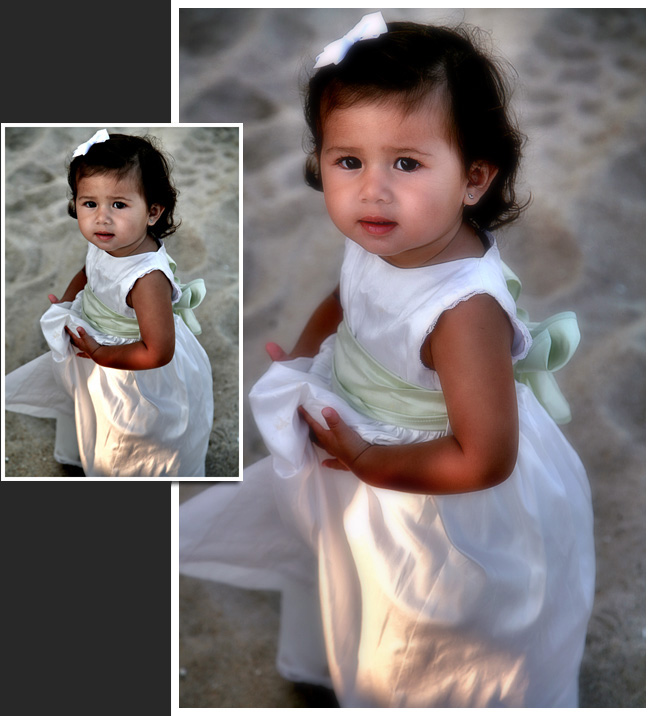
This is another example of a picture that looks great
already, so why retouch it? In this case, the color of the
little girl was a little off, but also we wanted to bring her
out into the foreground and add a soft glow.
After using the Pro Quick edit box to adjust the color
balance and midtones, we then use the Dyanmic Light functions to
create just the right contrast without washing out highlights.
After this, we applied a “Soft Glow” effect by sharpening and
then using the Soft Blur function. We then use the Draw mask to
create a Vignette around the girl to bring down the background.
Lastly, we blur the background a little bit to make the girl
stand out.
The result is a much nicer picture from a picture that was
already great. The colors are more natural, and the girl stands
out in the foreground with much softer features.